
Where can I find all training courses
How do I find training based on a particular skill or topic?
How do I navigate to the next training video?
Where can I find the course resources?
What does '% Complete' mean?
When will I receive my digital badge once I've completed a training course?
What do I do if it's been more than 48 hours since I completed a training course?
Where can I find all skill-booster training courses?
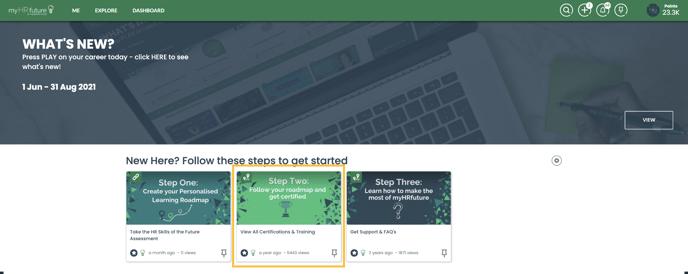
You'll be able to view all of the training courses we have in myHRfuture by navigating to the “Certification and Training” (1) pathway under "Steps to Get Started" on your homepage.
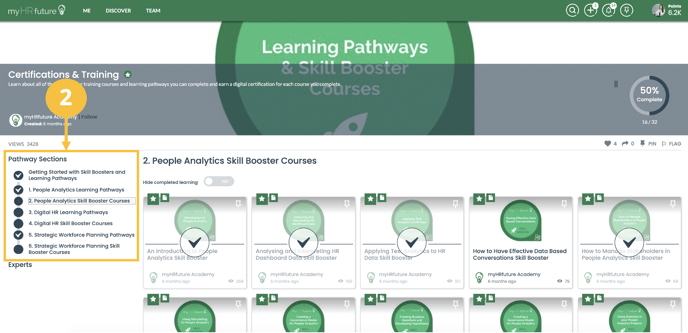
Here you will be able to view all of the skill-booster training courses and Learning Pathways available in myHRfuture.
By clicking through all of the different "Pathways Sections" (2) you'll be able to view all of the skill-booster training courses and Learning Pathways within a capability.
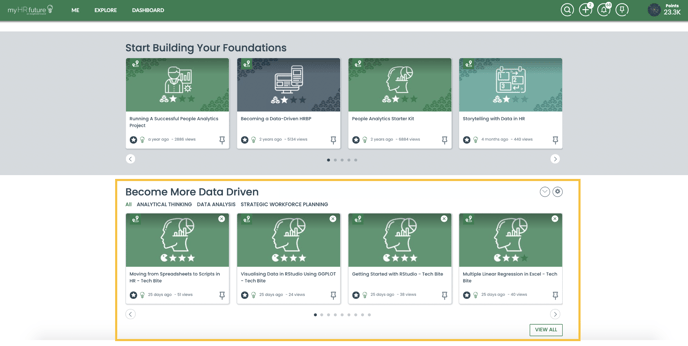
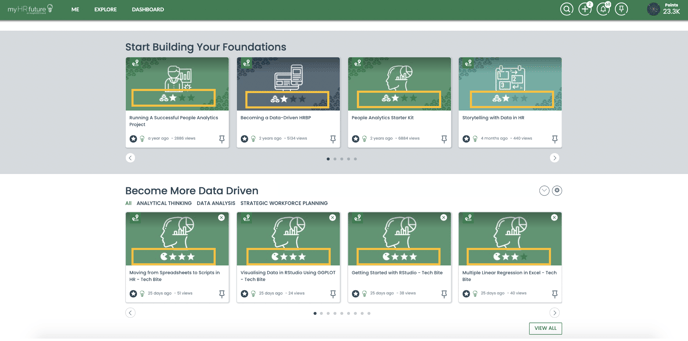
You can also browse training by scrolling down on your homepage to the different capability areas that you're interested in. Here you will be able to filter content by skill.
How do I find training based on a particular skill or topic?
By navigating to the capability area you're interested in your homepage - whether thats "Data Driven" "Business Focused" or "Experience Led" on the homepage, you will be able to view all skill-booster training courses by skill. So whether you're looking for training courses on Data Analysis or Workforce Planning you'll be able to find what you're looking for by clicking on the relevant skill (4)
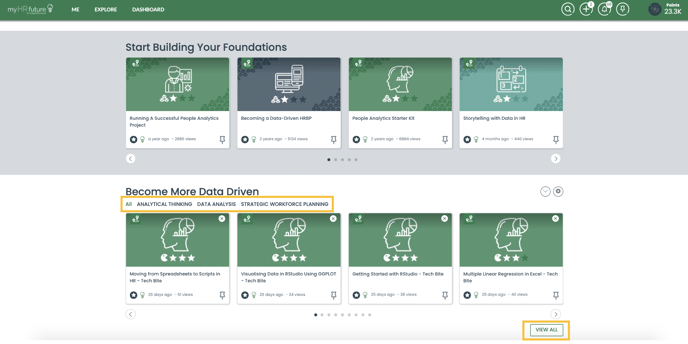
You will also be able to determine the capability level of the training course by looking at the stars on the thumbnail. This will help you identify if the training is
Advanced = ***
Intermediate = **
or Foundational = *
 How do I navigate to the next training video?
Once you've started a Skill-booster training course or Learning Pathway you enjoy, you can navigate between videos using the directional arrows (5) just below the video. Simply scroll down your page slightly to locate them
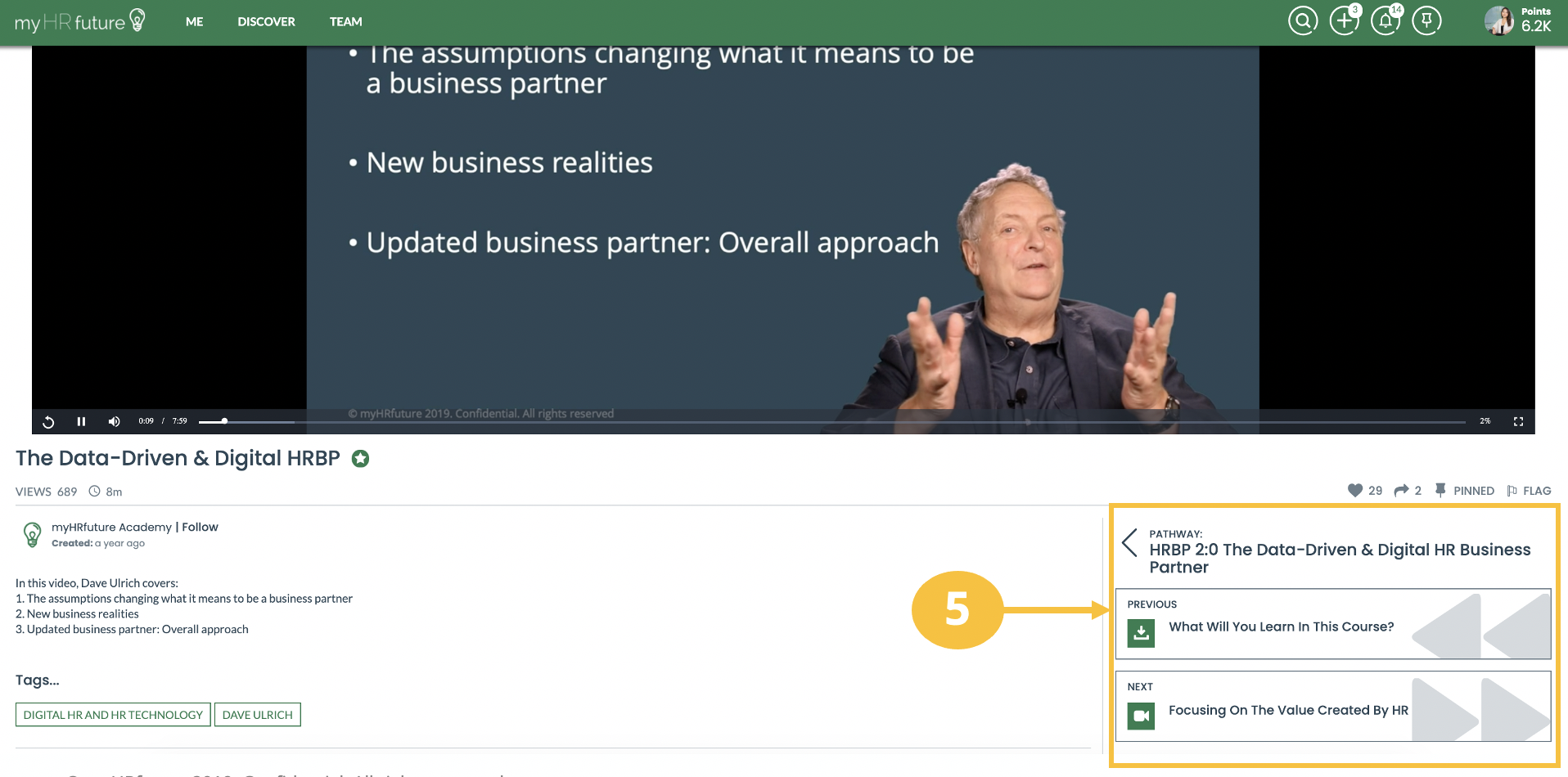
Here you will be able to navigate forward to the next video or backward to the previous video. You can also navigate back to the Pathway or Training Course overview page
Where can I find the course resources?
Some of our courses on myHRfuture have resources to allow you to follow along or that contain additional reading and case studies.
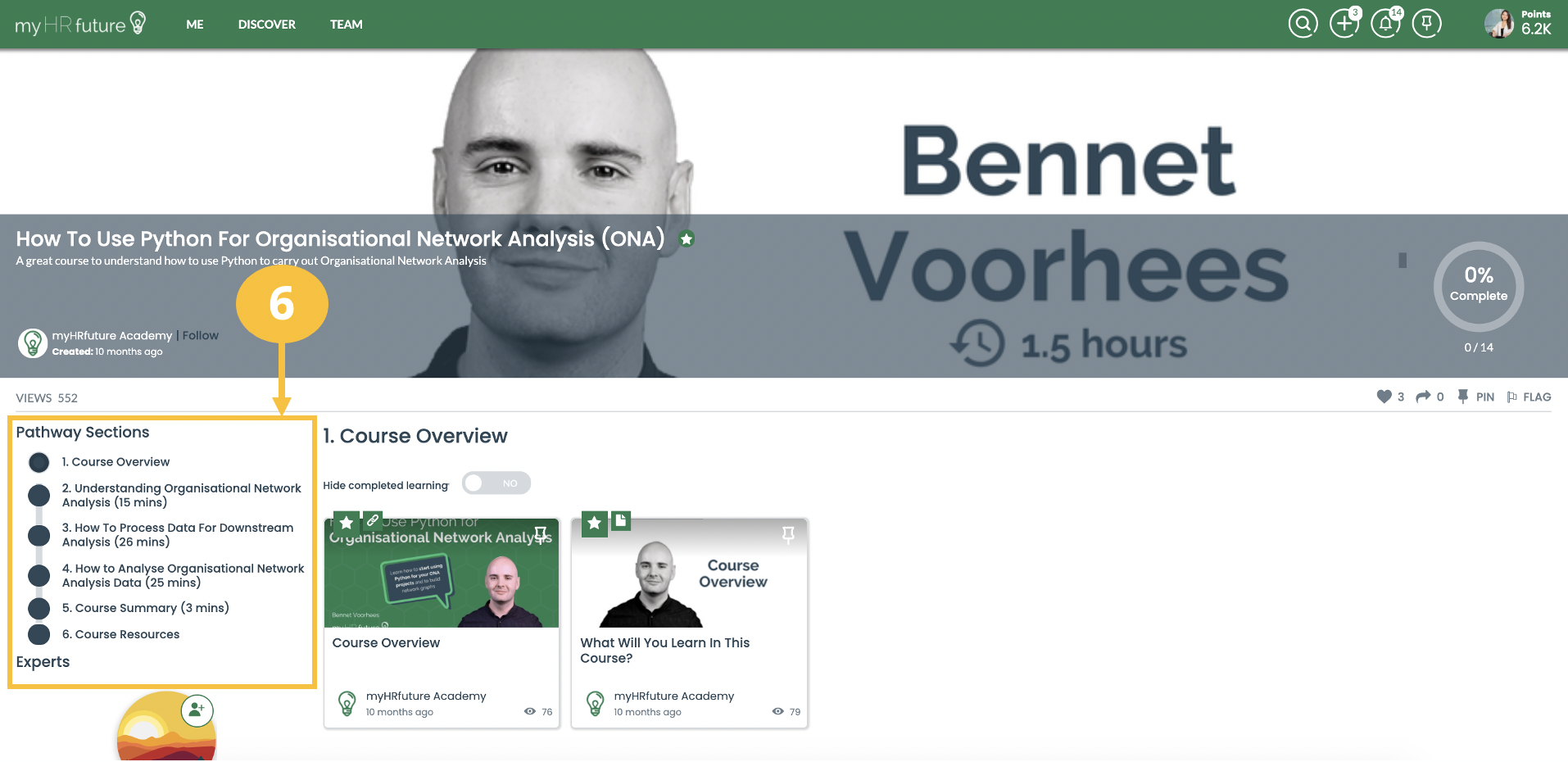
If you're completing a course that has additional resources you will be able to locate them in the "Course Resources" (6) section of the pathway.
What does '% Complete' mean?
On every Skill-booster training course and Learning Pathway you'll be able to track your progress through the "% Complete" This will indicate how much of the training course or learning pathway you have completed (7).
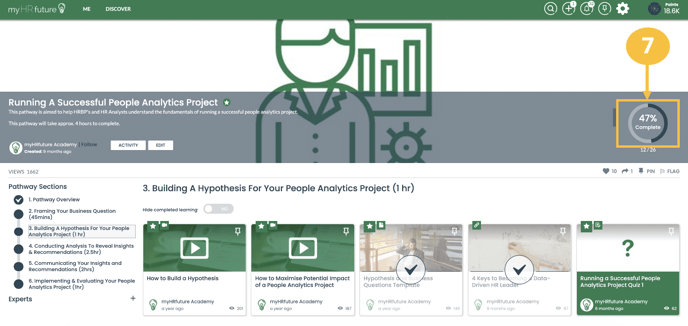
It also indicates the number of pieces you've content you've consumed (8) in the learning pathway or training course, and how many are remaining.
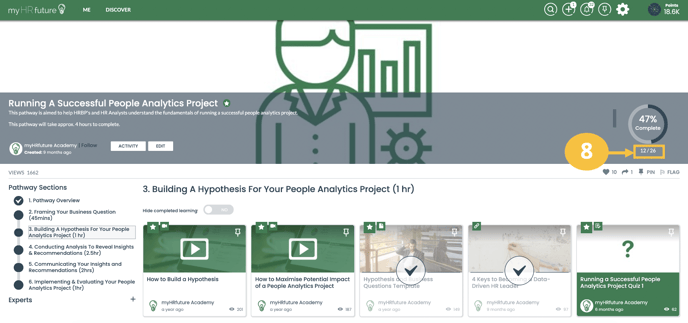
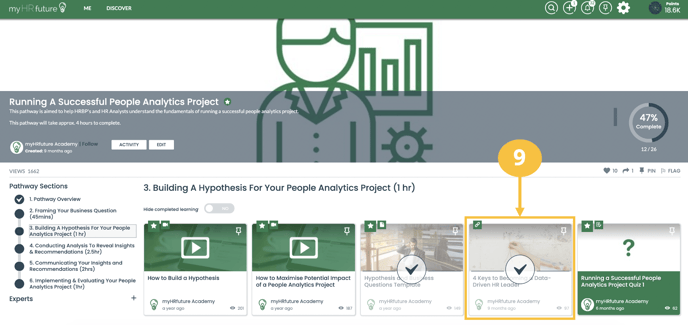
Finally, you'll notice that content in the Training Course or Learning Pathway you've consumed will be greyed out with a blue tick (9). This is helps you visually see all of the content you've consumed verses what is left to complete.
When will I receive my digital badge once I've completed a training course?
Once you've completed a training course or learning pathway you will be awarded your certificate and digital badge within 24-48hours.
You will receive an email from Acclaim notifying you that your badge has been issued. To claim your badge and share it with your network, simply follow the instructions in the email to setup or log in to your Acclaim Account.
For detailed steps on how to claim your digital badge and certificate click here
What do I do if it's been more than 48 hours since I completed a training course?
If you've not received your certificate and digital badge and it's been longer than 48hours you can raise a case with us, by completing this short form and we will get back to ASAP. Alternatively you can reach out to use using the support bot located in the bottom right hand corner of the page.